 Chartly
MT5 charts with your account in view
Connect Chartly to a running MetaTrader 5 terminal on Windows. Open the broker’s symbols in the chart and inspect account balances, positions, and working orders alongside price.
This guide describes the self-hosted app. The public preview lets you try sample paper replay in your browser.
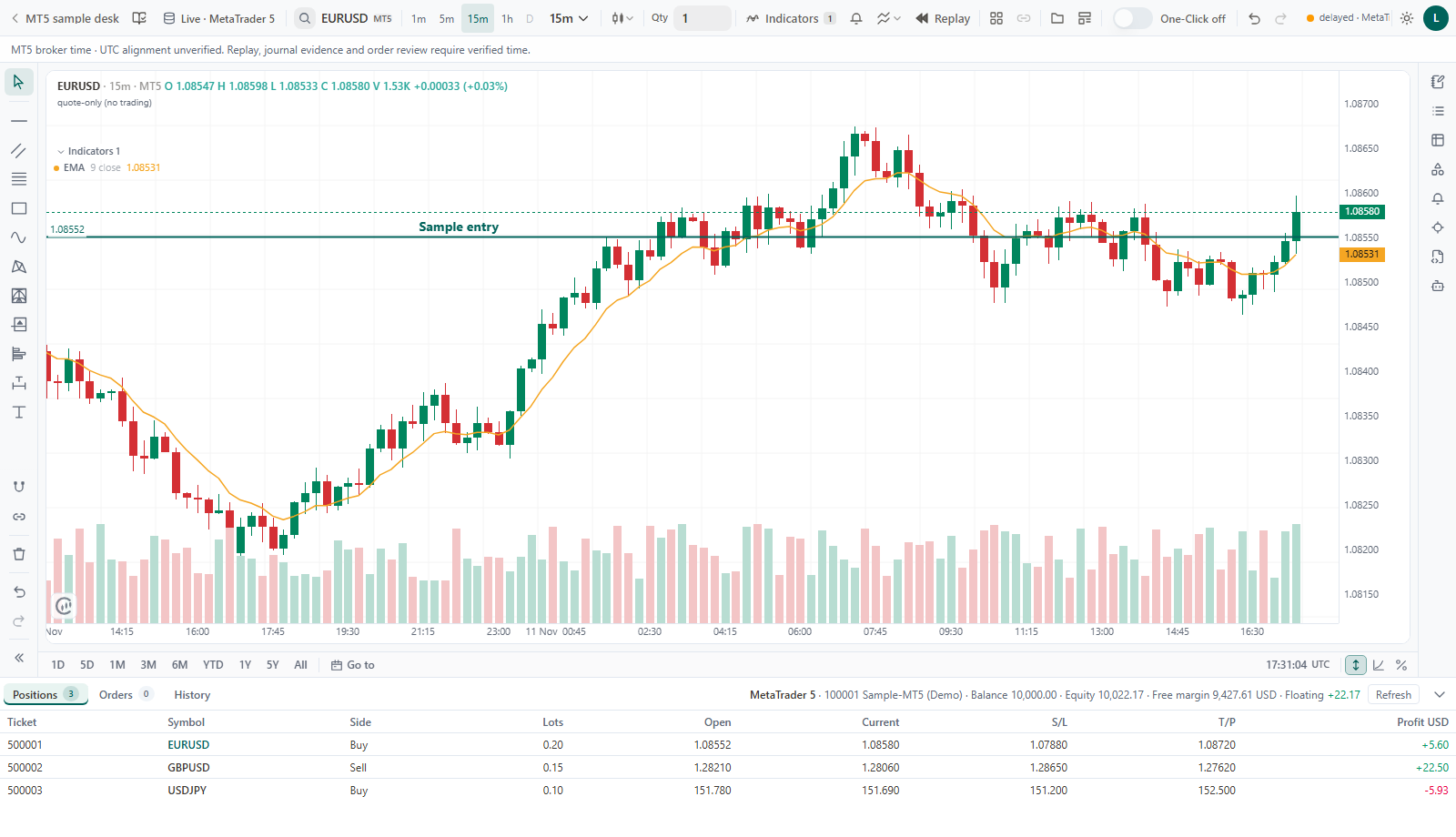
Link a signed-in MT5 terminal
Run Chartly and MetaTrader 5 on the same Windows machine. Chartly uses the terminal’s existing account session.
- Open MetaTrader 5 and sign in to the account you want to use.
- In Chartly, open Connections & Data and verify the MetaTrader 5 connection.
- Link it to a live profile and open the chart for that profile.
Find the right broker symbol
Search using the instrument name or broker symbol. Some brokers add a prefix or suffix, so select the instrument returned by the verified terminal. Add indicators and drawings in the Chartly chart.
Keep accounts tied to their profiles
A live profile uses its verified account for symbols and account data. If you use several MT5 installations, configure the approved terminal paths and link each account to its own live profile. Account features and order access depend on the connector and account permissions.